NEW NOVELIS TESLA TAG PROGRAM
Project Outline:
Novelis recently contacted Precision Strip Sales associate Brian Rismiller about the issues they are experiencing with the Precision Strip Tesla Tags. They have asked for Precision Strips assistance in trying to correct the issue.
Issue: Inaccurate Tesla Special Tag Data
Novelis currently generates Tesla special tags via Tesla’s web portal. Tags are printed and attached to material before shipment. A recurring issue occurs when the ship date on the tag does not match the ship date on the ASN (Advanced Shipping Notice) received by Tesla. Our EDI sends them the info at the time of Release Load. Any mismatch forces Tesla associates to manually receive the material. Tesla charges Novelis a substantial fee for each manual receipt. Frequency of this issue has increased, leading to heightened pressure from Tesla for a reliable fix.
Resolution:
Novelis has Requested Automated Tesla Tag Generation from Precision Strip Develop a program to generate and print Tesla tags internally. Ensure the tag is printed and attached as close as possible to truck departure. Guarantee that the ship date on the tag matches the ASN sent to Tesla. (We are trying + or – 1 day of our BOL Ship Date when the driver receives the Shipping Paperwork and the load ships) Maintain accuracy across all tag data, with ship date as the top priority. Precision Strip Information Technology Goal: Develop the least intrusive method to Generate Novelis Tesla Tags without violating any Quality or Safety Procedures. Add Quality Checks at Load Generation, Truck Appointment Check In and during the Load Verification Process to ensure no misidentified material. Add extra checks to try and give enough lead time during the check in and build load process to alert a Precision Strip Associate to verify the Tesla Tags prior to start loading the truck.
This program will not be put in place until proper training has happened with plant associates. Once this happens, IT then can turn on the appattr to implement this program.
REQUIREMENTS AND SET UP NEEDED PRIOR TO GENERATING A NOVELIS TESLA TAG:
To ensure Tesla tags are printed accurately and timely, the following logic will be implemented:
Automated Tesla Tag Generation: Trigger Condition:
When a load is generated in the Load Schedule or with RF Scanner Function 20, the user will be prompted with a message if they would like print the Tesla Tags now. If they select OK, they will be prompted to choose a Ship Date.
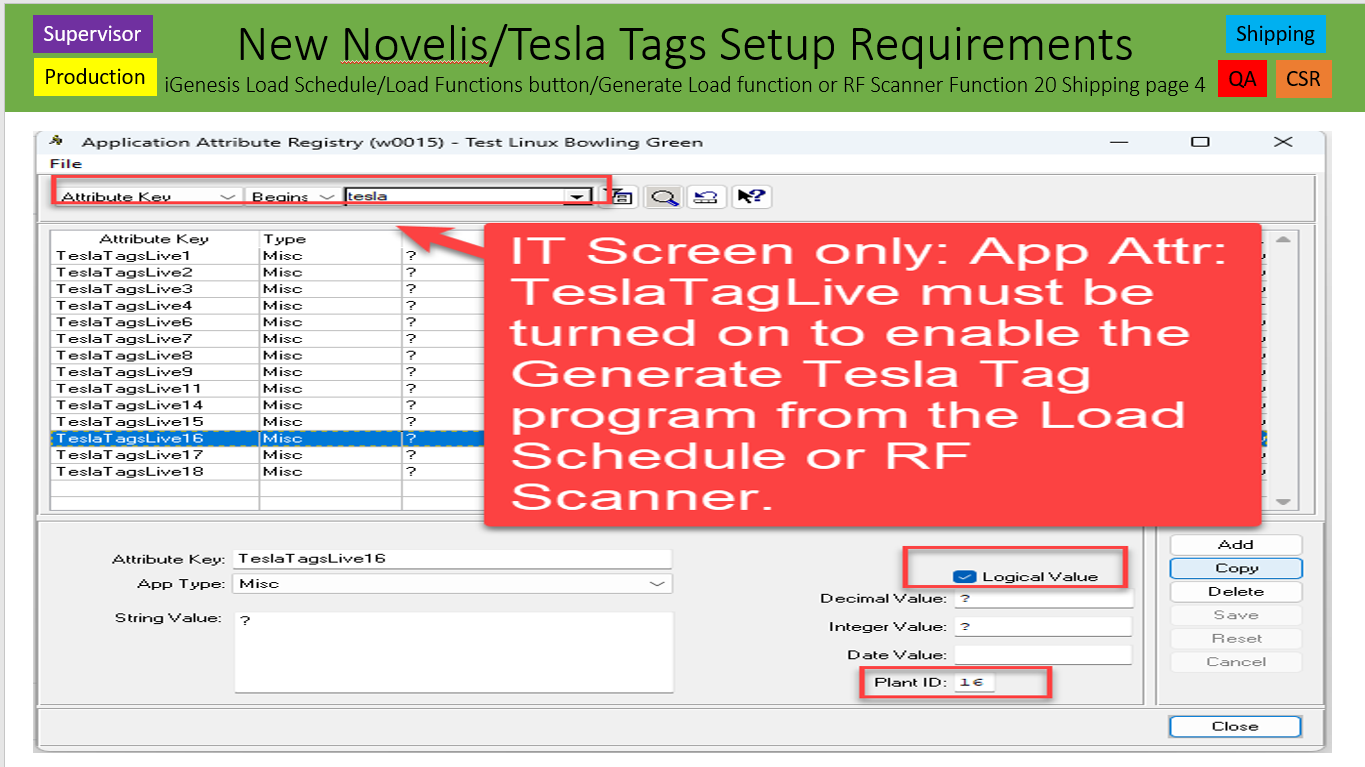
App Attr Must be Checkmarked On:
App Attr name: TeslaTagsLive (and then the plant #). This is an IT Function that you must contact It Help to turn on this app attr that is set up by a plant by plant basis. When this is turned on, it will offer the option to generate Tesla tags as long as all conditions are met.
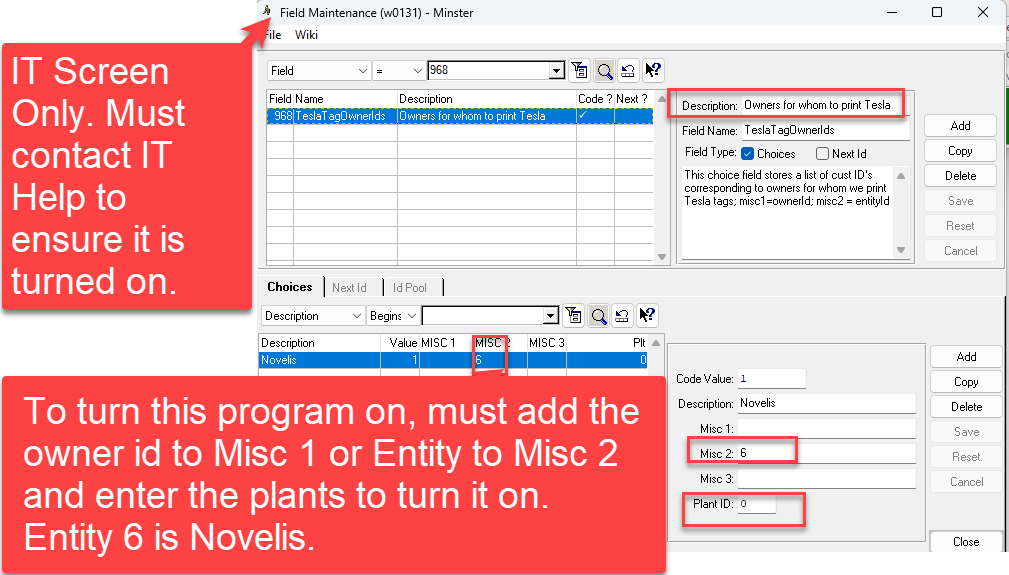
Owner ID or Entity ID must be added to Choice Field 968:
Choice Field 968 TeslaTagOwnerIds must have the owner ID entered in Misc 1 or Entity ID entered in Misc 2 along with the Plant ID, use 0 for all Plants.
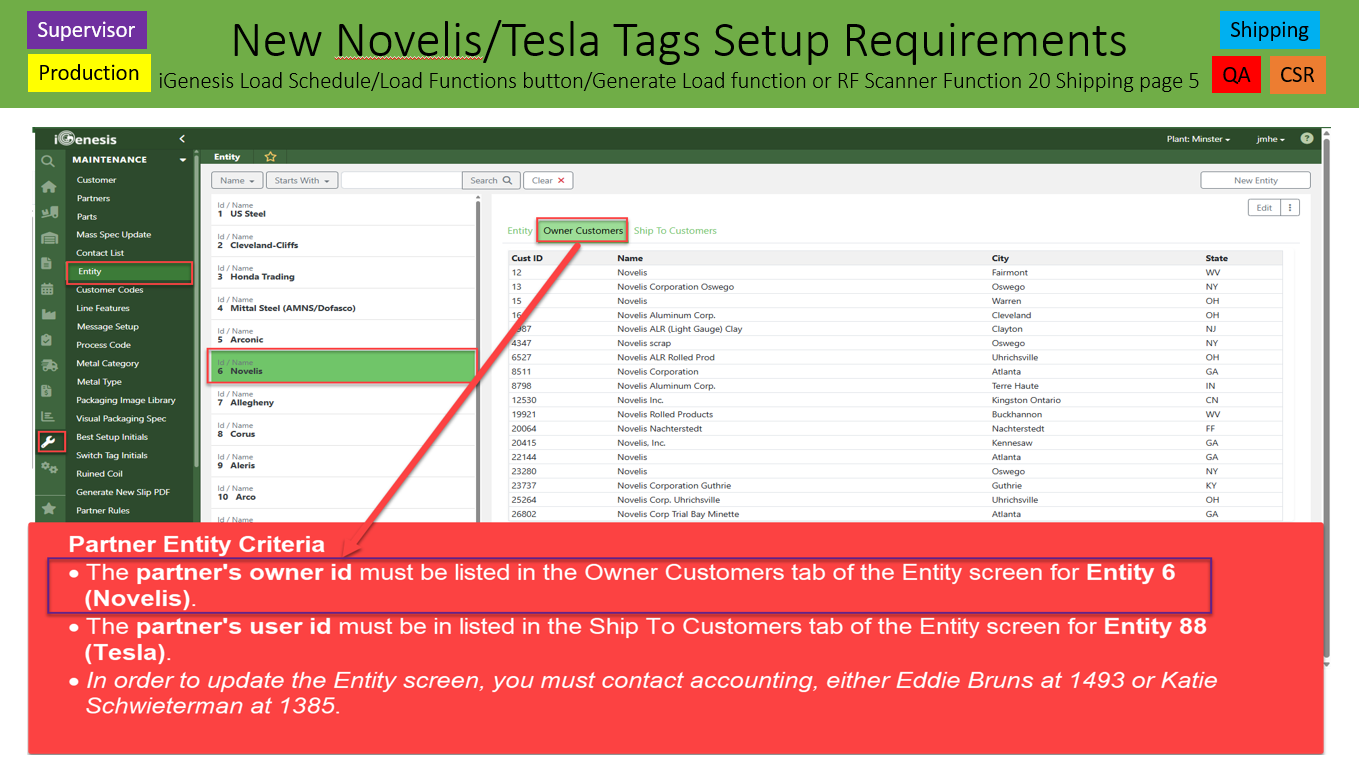
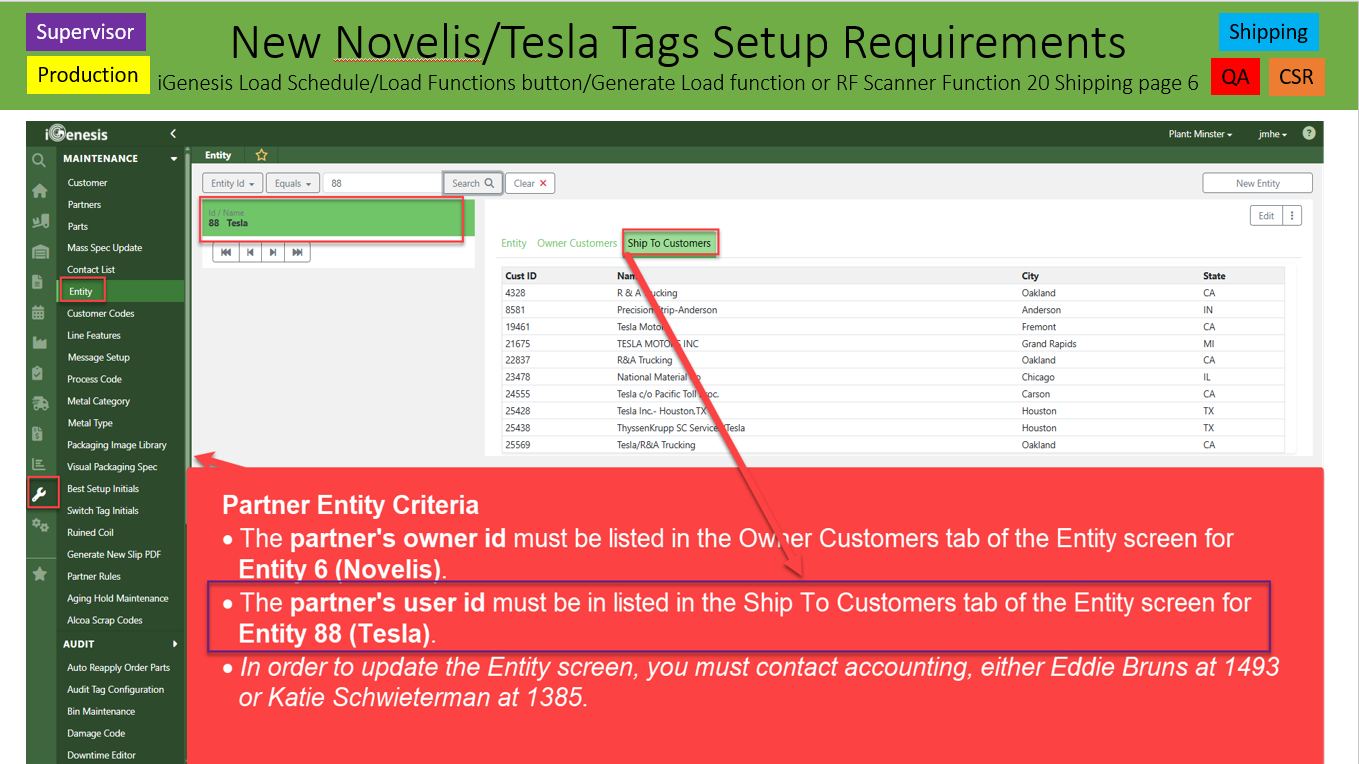
Partner Entity Criteria
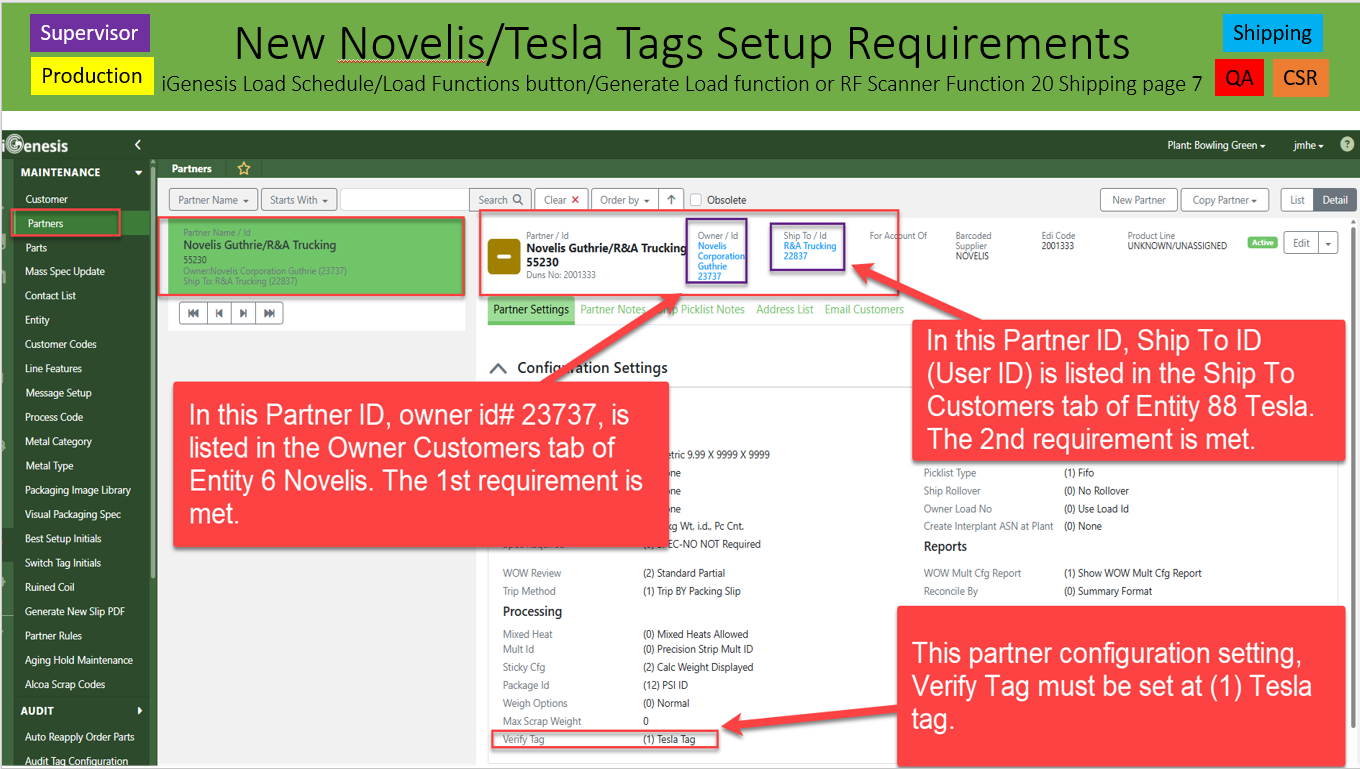
The partner's owner id must be listed in the Owner Customers tab of the Entity screen for Entity 6 (Novelis). The partner's user id must be in listed in the Ship To Customers tab of the Entity screen for Entity 88 (Tesla). In order to update the Entity screen, you must contact accounting, either Eddie Bruns at 1493 or Katie Schwieterman at 1385.
Partner ID Configuration Settings:
In Configuration Settings -> Processing Header: Verify Tag: The setting must be (1) Tesla Tag.
Printer Requirements
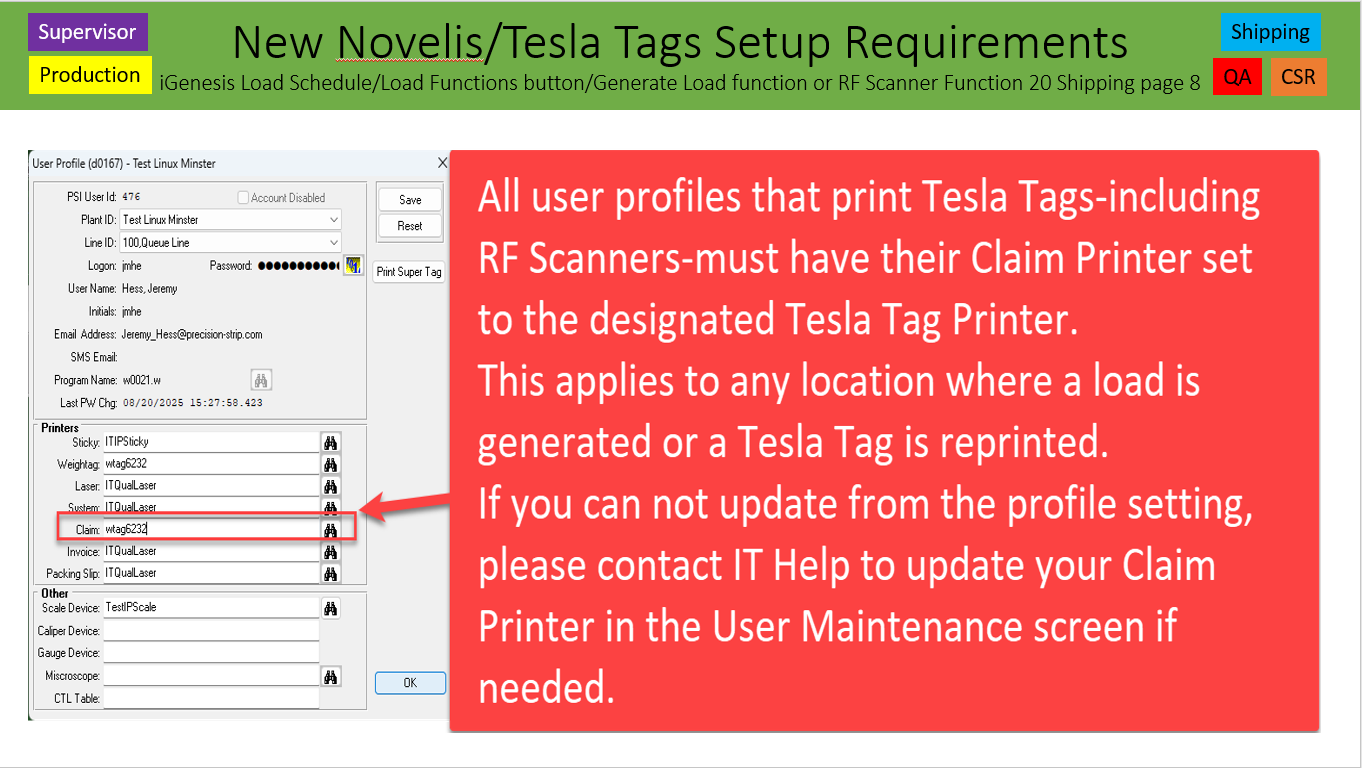
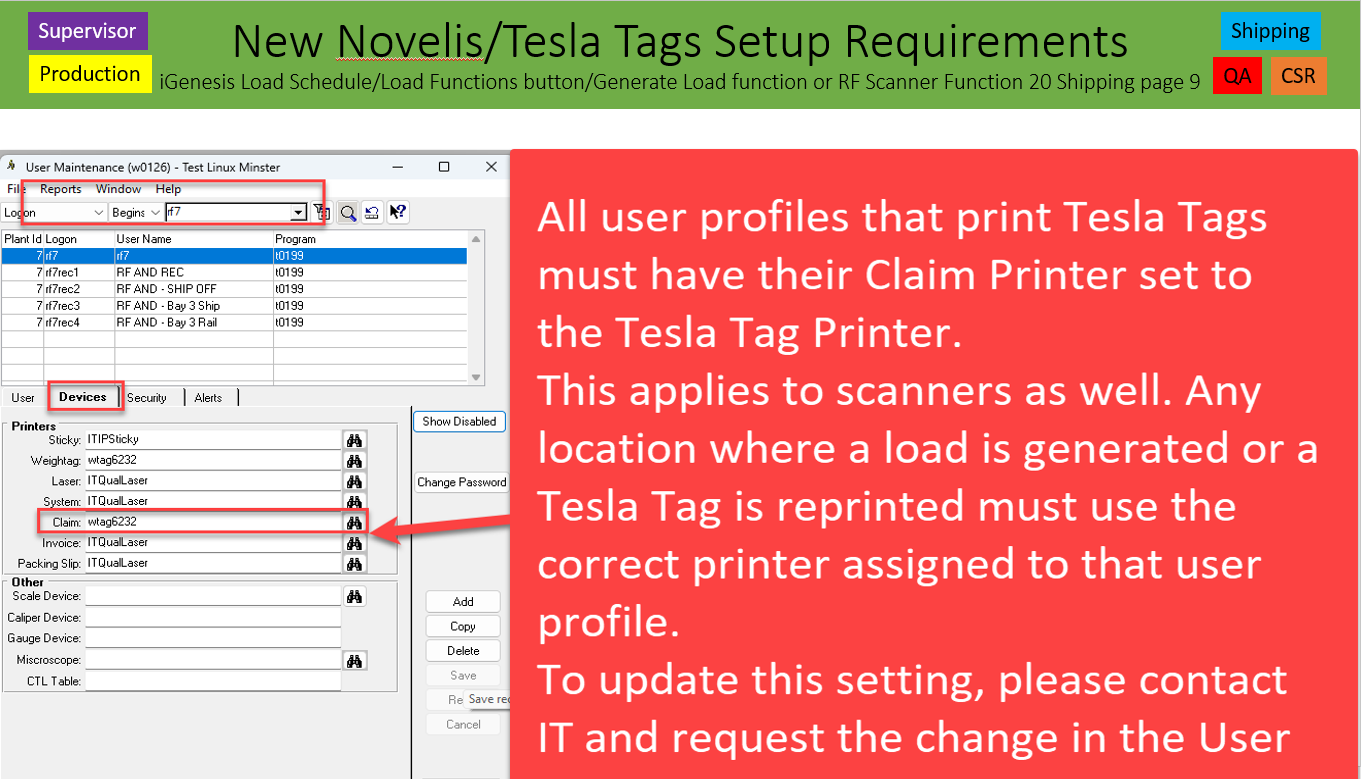
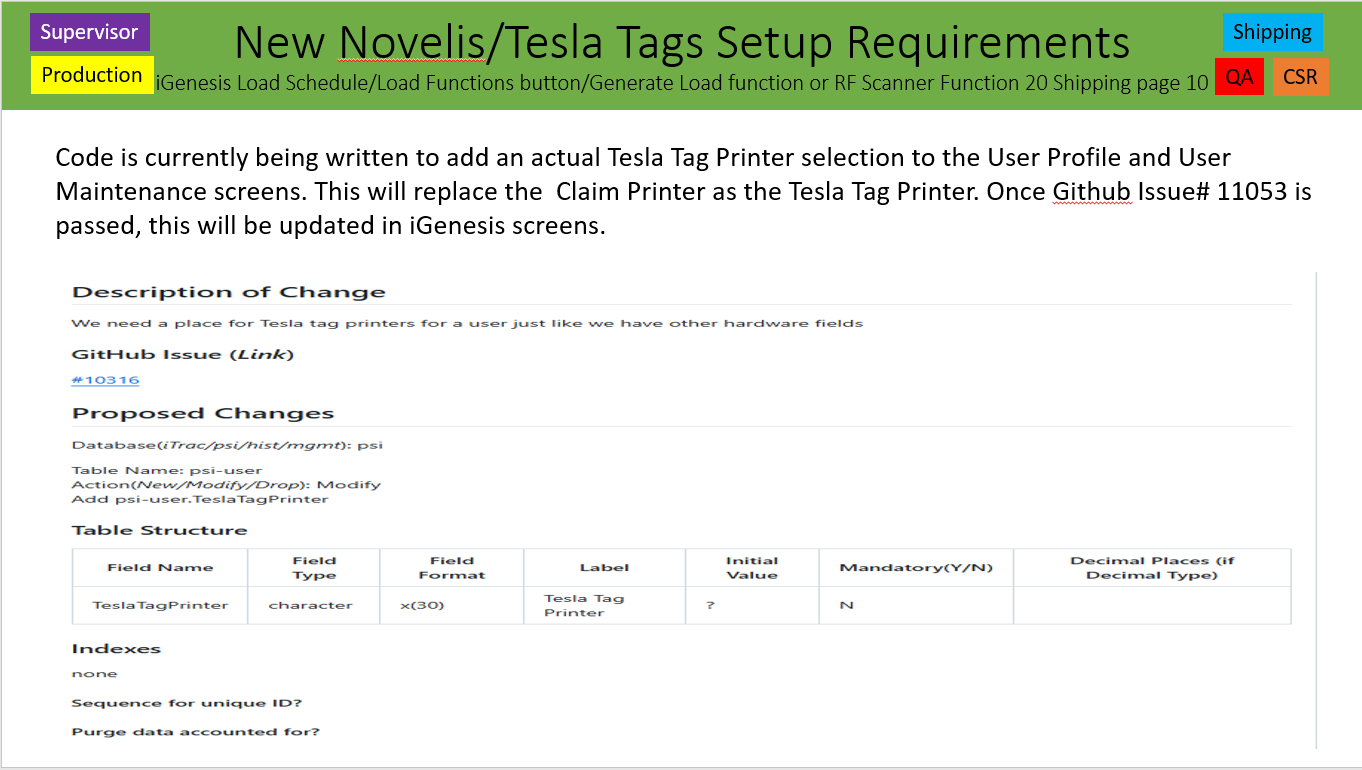
All Tesla Tags will print from the user’s profile that generated the load or reprints the tag. This also includes any rf scanner log ins or anyone that would reprint a Tesla Tag. This will be maintained in the user’s iGenesis Profile. You will also have to contact IT to update the User Maintenance screen for that log in. Currently, the Tesla Tags are set to print from that User’s Claims Printer setting. There is schema being developed to add a Tesla Tag Printer to the Profile.
Ability to Reprint the Tesla Tag
The user can go to the Weigh Package screen in the Scales menu and select the Print Tags button. This will bring up the Reprint Tag screen where a Reprint Tesla Tag button has been added.
Outcome:
This ensures Tesla tags are generated and printed by Precision Strip that are only for relevant shipments, reducing manual errors and improving alignment with Tesla’s ASN expectations.
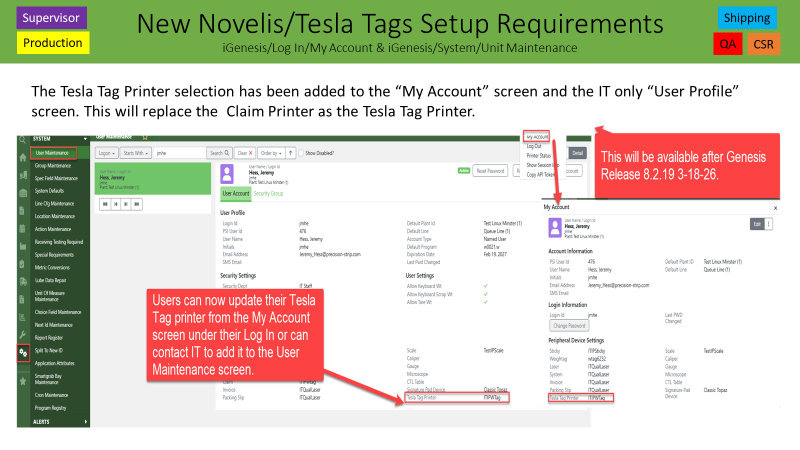
Githubs: 10316, 10800, 10804, 10874, 11053, 11113, 11117 & 11118 – Daniel King - Release 8.2.15 – November 12, 2025
Was this article helpful?
That’s Great!
Thank you for your feedback
Sorry! We couldn't be helpful
Thank you for your feedback
Feedback sent
We appreciate your effort and will try to fix the article